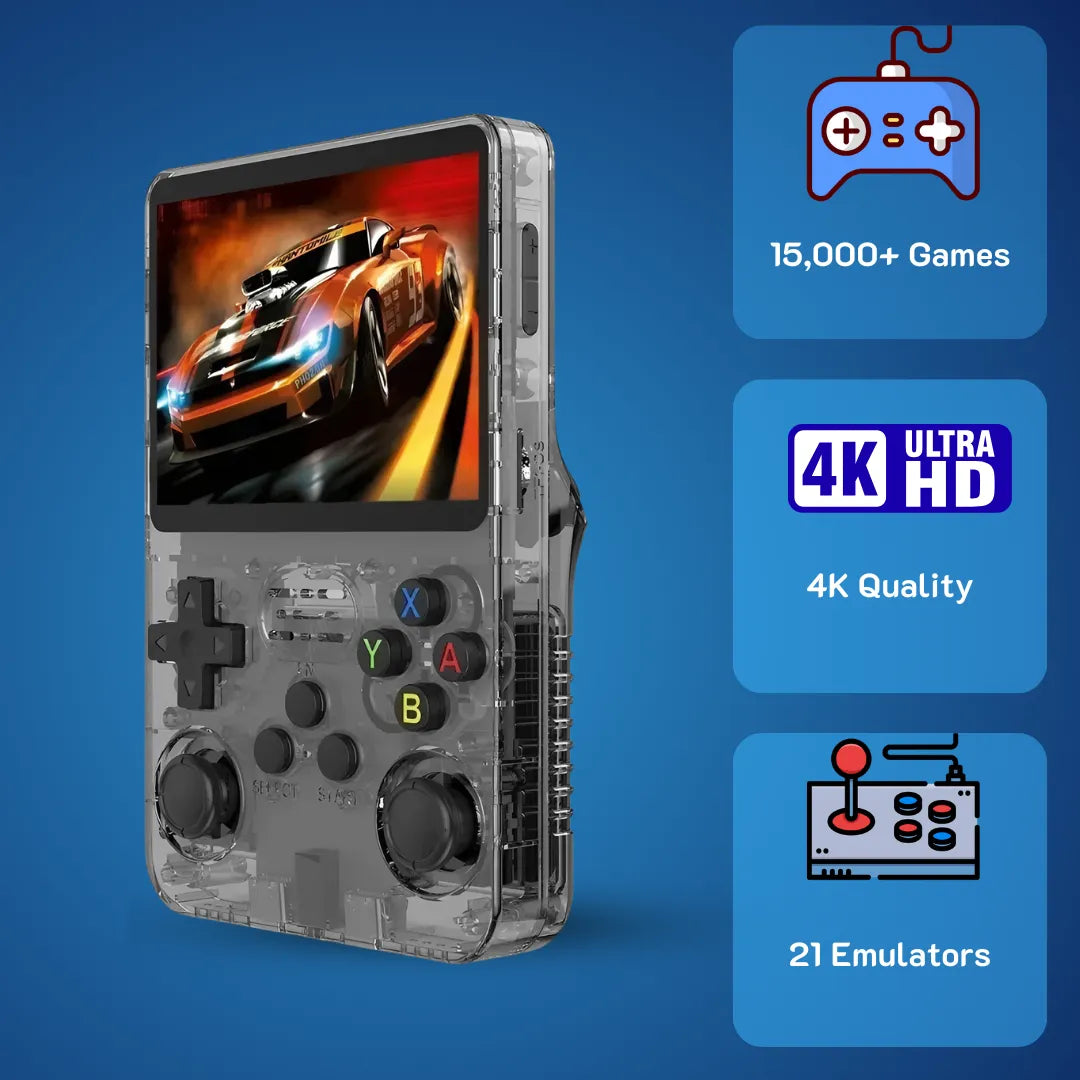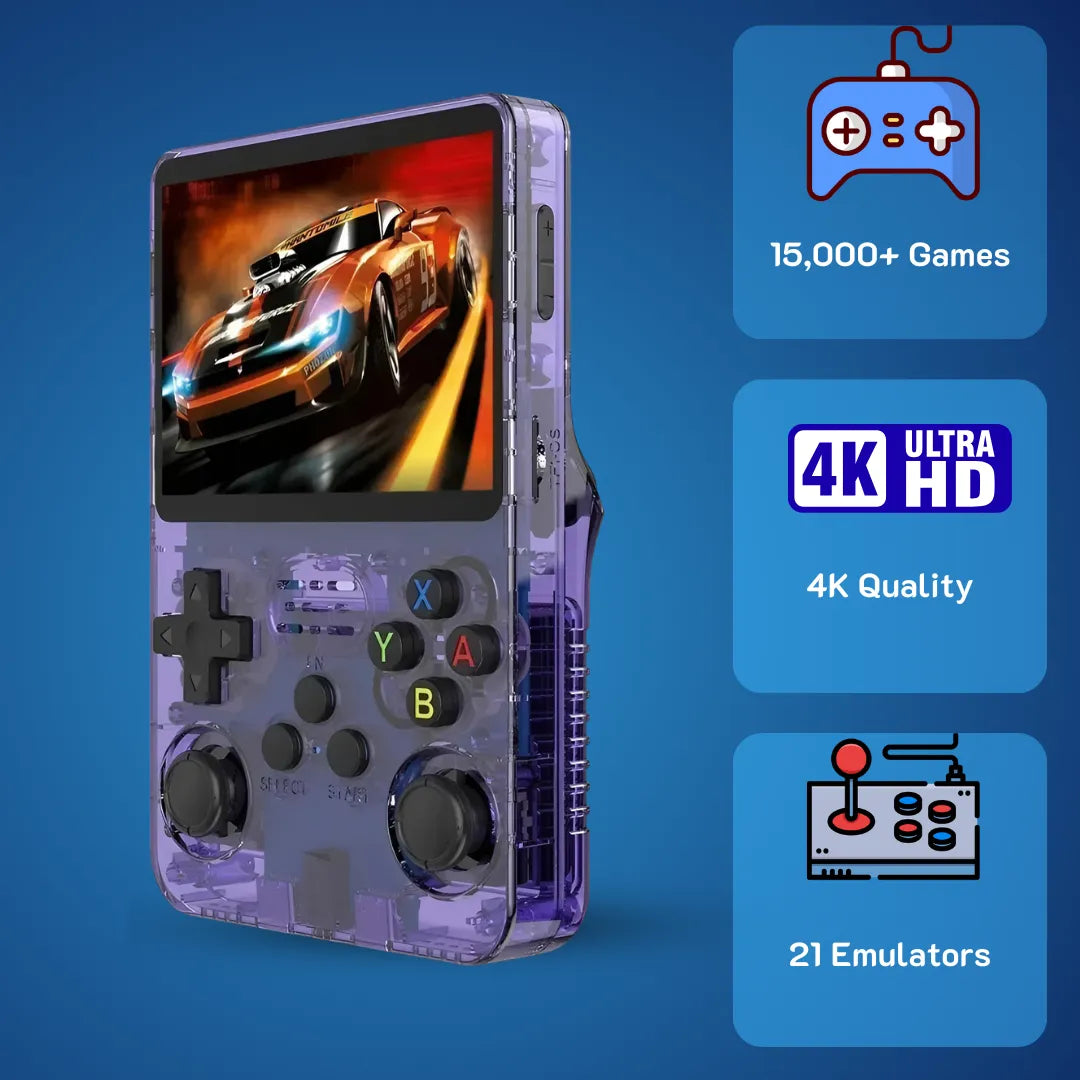


Step-by-Step Guide to Updating ArkOS on Your R36S

Updating ArkOS on the R36S improves stability, performance, and the overall RetroArch experience.
Warning: Before flashing, insert your original SD card into a PC and backup the rk3326-r35s-linux.dtb file from the BOOT partition! Flash the new ArkOS image to a branded SD card (Samsung/SanDisk) using Rufus. Finally, copy your original .dtb file back to the new BOOT partition to prevent a black screen.
Update R36S ArkOS is the single best decision you can make to breathe new life into your pocket gaming companion and unlock the true power of that quad-core R36S CPU. If you have ever felt the frustration of a corrupted stock SD card or choppy audio while trying to play your favorite 90s RPGs, you are not alone in this retro journey. We at 2Bluebox understand that desire to just pick up the device and drift away into pixelated nostalgia without battling technical errors on your favorite retro game console.
This guide acts as your comprehensive roadmap to safely flashing the system, ensuring your R36S Handheld runs buttery smooth in January 2026. 🚀
Beyond just a simple installation, mastering the Update R36S ArkOS process grants you access to advanced features like Quick Mode, drastically improved emulator performance (up to 20% higher FPS in N64 titles), and a far more reliable file system. By replacing the generic software with a community-verified Install ArkOS R36S image, you protect your save files and enhance the visual fidelity of every title from the golden era.

ArkOS boot-up on R36S—faster navigation and a smoother front-end when installed correctly.
1. Why does the Update R36S ArkOS process frequently fail?
The R36S Game Console has become a phenomenon in the retro community due to its incredible price-to-performance ratio, often selling for under 40 USD. However, it hides a notorious secret that trips up almost every beginner. (For a deep dive into why this device is so popular, read our R36S Honest Review: Is It Still the Best Handheld Under $100?).
When you attempt an Update R36S ArkOS, you are not just dealing with one standardized piece of hardware. The manufacturers of the R36S sourced screens from multiple suppliers over the years to keep costs down. As of January 2026, we have identified at least four distinct screen panel variations, commonly referred to as Panel V1, V2, V3, and V4. 🧐
These panels require specific drivers, known technically as DTB (Device Tree Blob) files, to communicate with the R36S CPU and display an image.
If you flash a standard community image without replacing the DTB file with the one matching your specific screen, the device will boot, the green light will turn on, but the screen will remain pitch black.

If you get a black screen after flashing, you’re usually one DTB file away from a normal display—swap the correct panel DTB on the BOOT partition.
2. How do I accurately identify which display panel my R36S uses?
Identifying your screen version is the detective work required before the actual Update R36S ArkOS execution. Do not rely solely on the sticker on the back of the motherboard, as factories often mislabel these. The most reliable method to identify your screen version and ensure a successful Install ArkOS R36S is to inspect the files on the original stock SD card. 🕵️♂️
| Panel Version | Common Characteristics | Manufacturing Date Est. | DTB Compatibility |
|---|---|---|---|
| Panel V1 | Original release, warmer color. | Late 2023 - Early 2024 | Standard ArkOS Image |
| Panel V2 | Slightly brighter (+50 nits). | Mid 2024 | Requires V2 specific DTB |
| Panel V3 | High refresh rate variance. | Late 2024 | Requires V3 specific DTB |
| Panel V4 | Labeled "2025 Upgrade". | 2025 - 2026 | Requires V4 specific DTB |
3. What is the precise Flashing Process using Rufus?
Now we move to the core operation. We strongly recommend using a high-quality MicroSD card from a reputable brand like Samsung (Evo Plus) or SanDisk (Ultra), ideally 64GB or 128GB in size. The unbranded stock cards provided with the R36S Gaming device have a failure rate of nearly 40% within the first month of heavy usage. 💾
Step-by-Step Flashing Guide:
- Preparation: Insert your new MicroSD card into your PC. Format the card to exFAT initially.
-
Download: Get the latest ArkOS image file (usually ending in
.img.xz). - Open Rufus: Launch the Rufus application (Windows) or BalenaEtcher (Mac/Linux).
- Target Selection: Select your MicroSD card carefully.
-
Image Selection: Navigate to your extracted ArkOS
.imgfile. - Flash: Click 'Start'. Rufus will warn you that all data will be destroyed. Accept this.
- Verification: Once finished, Rufus will say "READY".

Flashing the ArkOS image to a fresh microSD card (Rufus/Etcher) is the foundation of a clean, stable setup.
4. How do I correctly copy the DTB files?
You have the Install ArkOS R36S image on the card, but it currently contains the default drivers. If you insert this card now, you will likely face a black screen.
The DTB Swap Procedure:
-
Access the BOOT Partition: Open your File Explorer to the drive labeled
BOOT. -
The Swap: 📂
-
Scenario A (Best): Copy your original
rk3326-r35s-linux.dtb(backed up in Step 2) and paste it into theBOOTdrive, overwriting the existing file. -
Scenario B: If you lost the backup, download the community DTB pack, rename the file corresponding to your panel (e.g.,
rg351mp-v2.dtb) to the system default name, and copy it over.
-
Scenario A (Best): Copy your original
- Eject Safely: Use "Safely Remove Hardware".

Identify your screen panel, then replace the DTB on the BOOT partition to avoid black-screen issues after installing ArkOS.
5. Is there an easier solution? (2Bluebox Pre-Install)
Reading through the steps above—identifying panels, downloading gigabytes of data, flashing images—can be daunting. Many users just want to buy a Game Master R36S and play immediately.
This is why we created the 2Bluebox Pre-Configured R36S Solution. We have performed the Update R36S ArkOS to the latest January 2026 build for you.
Prefer zero setup? The 2Bluebox R36S comes pre-configured with the latest ArkOS so you can unbox, boot, and play immediately.
| Feature | Generic Store Unit | 2Bluebox Edition |
|---|---|---|
| OS Version | Outdated Stock (often 2023) | Latest ArkOS 2026 ✅ |
| SD Card | No-name Brand (High Failure) | Samsung/SanDisk (Genuine) 🏆 |
| Screen Setup | Random (Risk of Black Screen) | Calibrated & DTB Fixed 👁️ |
| Game Library | 10,000+ (Broken/Dupes) | 15,000+ Curated & Tested 👾 |
6. Frequently Asked Questions (FAQ)
Q1: Will performing an Update R36S ArkOS delete my games?
Yes. Flashing a new image wipes the SD card completely. You must back up your EASYROMS partition to your computer first. If you need help restoring them or expanding storage, refer to our How to Add Games to R36S (ArkOS): Single vs. Dual SD Guide.
Q2: My R36S screen is black but the blue LED is on. Is it broken?
No. This is the "wrong DTB file" issue. Follow Section 4 to copy the correct file for your panel version.
Q3: Can I use a generic SD card for the R36S Retro Handheld?
We strongly advise against it. Generic cards have high failure rates. Always use branded cards like SanDisk or Samsung.
7. Conclusion
Mastering the Update R36S ArkOS process is the rite of passage for every owner of this incredible handheld. While the initial setup involves navigating screen versions and flashing tools, the reward is a R36S Retro Handheld Game Console that punches far above its weight class.
8. Further Reading & Resources
1. Regarding the Critical Need for Specific DTB Files
- Excerpt: "There are currently multiple panel versions for the R36S... Using the wrong dtb file will result in a black screen."
- Source: Repository "ArkOS-R3XS - Readme" by AeolusUX on GitHub.
- Direct Link: github.com/AeolusUX/ArkOS-R3XS
2. Regarding Partition Expansion
- Excerpt: "On the first boot, the system will automatically expand the EASYROMS partition... Do not turn off the device."
- Source: Wiki page "ArkOS" by Christian Haitian on GitHub.
- Direct Link: GitHub ArkOS Wiki
3. Regarding Recommended Tools
- Excerpt: "I recommend using Rufus (Windows)... as it is lighter and more reliable."
- Source: Article "ArkOS Starter Guide" by RetroGameCorps.
- Direct Link: RetroGameCorps ArkOS Guide


2Bluebox Retro Handheld Video Game Console
2Bluebox Retro Handheld Video Game ConsoleBUNDLE & SAVE

Collection 90s Gaming Magazine

2Bluebox 90s Pet Keychain

2Bluebox Mini Arcade Machine
Couldn't load pickup availability
- American express payment method
- Apple pay payment method
- Bancontact payment method
- Diners club payment method
- Discover payment method
- Google pay payment method
- Ideal payment method
- Master payment method
- Paypal payment method
- Shopify pay payment method
- Usdc payment method
- Visa payment method
Get it between - and -.
 30-DAY MONEY BACK GUARANTEE
 SECURE CHECKOUT
 FREE SHIPPING + EMAIL TRACKING