

Game Stick 4K vs PC Emulator: Which One Should You Choose?
 Two ways to relive classic games: a full PC emulator setup or a simple plug-and-play Retro Game Stick 4K.
Quick Summary: The Game Stick 4K (priced at $59.98 USD / ~94 AUD) is the ideal choice for families and casual gamers seeking a plug-and-play living room experience without technical hassle. In contrast, a PC Emulator offers superior graphics and lower latency but requires a significantly higher investment ($300+) and complex configuration.
Game Stick vs Emulator is the debate that every retro gaming enthusiast faces when the urge to replay Contra or Street Fighter II hits hard. We all remember the golden era of the 90s, where blowing into a cartridge was the ultimate tech support fix and pixel art was the pinnacle of graphics. Today, you are standing at a crossroads between buying a convenient plug-and-play Gamestick or building a powerful emulation machine.
At 2Bluebox, I believe that gaming should be about joy, not frustration. This comprehensive guide will help you decide between the portable Retro Gaming Console vs PC, ensuring your trip down memory lane is smooth and budget-friendly. Whether you want the simplicity of a Game Stick 4K or the raw power of a desktop rig, we have the answer. Let us dive into the world of pixels, shaders, and frame rates.
Plug in and play—Game Stick is built for simple living-room setup.1. Game Stick 4K vs. PC Emulator: Which One Should You Choose?
When I first held a Gamestick Console, I felt a wave of skepticism mixed with hope. Could this tiny device, barely larger than a standard USB thumb drive, really replace the massive collection of dusty consoles in my attic? On the other hand, my PC has always been the beast of the house, capable of rendering polygons that 90s developers never even dreamed of.
The battle of Game Stick vs Emulator is not just about hardware specs; it is about lifestyle. It is about whether you want to tinker with configuration files for hours or just sit on the couch and play. In January 2026, the technology has leaped forward significantly. The Game Stick 4K models now boast chipsets that were considered flagship tier just a few years ago. However, PC emulation has also evolved, with software like RetroArch and Batocera becoming more user-friendly.
In this deep dive, I will walk you through every single aspect. If you are new to this world, you might want to start by reading our definition of a retro game console to understand the basics. We are not just looking at numbers; we are looking at feelings, convenience, and that specific joy of hearing the SEGA start-up sound.
2. Is the Price Tag of a Stick ($59.98 USD) the Real Winner Against a PC ($500+)?
Let us talk money 💰. It is the first thing we look at, right? When comparing a Game Stick vs Emulator running on a PC, the upfront cost difference is staggering.
The Value Proposition of the Game Stick 4K
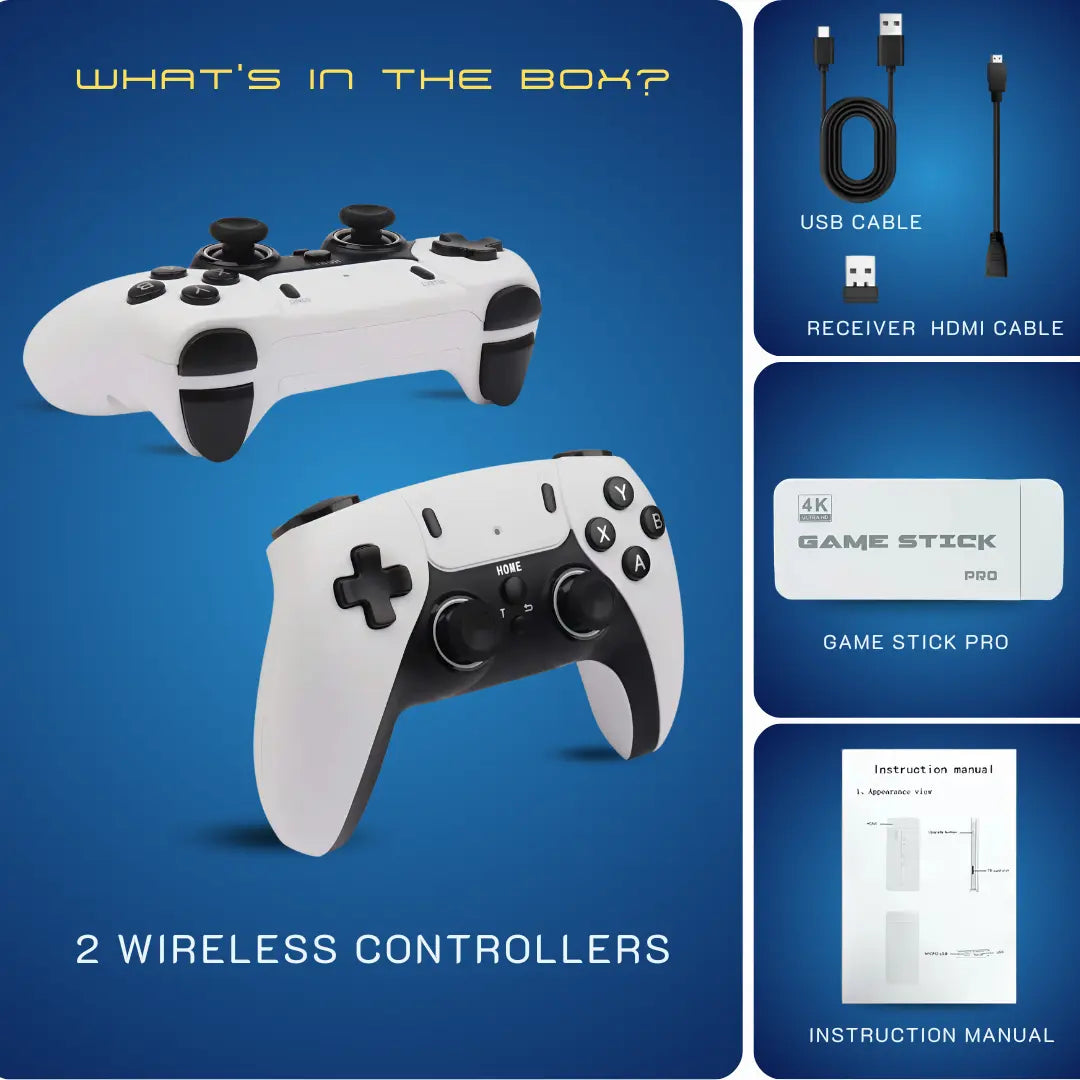
The appeal of the Gamestick lies in its incredible price-to-performance ratio. For $59.98 USD / ~94 AUD, you are getting a complete, self-contained system. This typically includes:
- The 2Bluebox Retro Game Stick Pro 4K HDMI dongle itself.
- Two wireless controllers (usually clones of the PS3 or PS4 design).
- A microSD card (64GB or 128GB) pre-loaded with an operating system and games.
- All necessary HDMI extenders and power cables.
If you are unsure exactly what this hardware entails, check out our guide on What is a Game Stick 4K? to see the tech inside.
According to recent market analysis, the average entry price for a 4K-capable retro stick has dropped significantly while performance has increased. (Source: "The Best Retro Game Consoles & Sticks To Buy In 2025" by Brandon Saltalamacchia, RetroDodo).
You pay once, and you are done. There are no hidden subscription fees, no need to buy a separate monitor, and the power consumption is negligible—powered directly from your TV’s USB port (5V/2A).
The True Cost of PC Emulation
Now, look at the Retro Gaming Console vs PC debate from the computer side. If you already have a high-end gaming PC, the software is free. But if you are building a system specifically for emulation in 2026, the costs stack up fast:
- Entry-level Mini PC (like an Intel N100 or Ryzen equivalent): 150 USD - 250 USD.
- Controllers (Xbox Series or 8BitDo): 40 USD - 70 USD each.
- HDMI Cables and peripherals: 20 USD.
- Storage (SSD/HDD): 50 USD+.
You are easily looking at a 300 USD to 500 USD investment before you even load your first game. Yes, the PC can do more—browsing, working, streaming—but strictly for retro gaming, the Gamestick Pro wins the wallet war hands down.
| Item | Game Stick 4K Bundle | Emulation PC Build |
|---|---|---|
| Console/Unit | $59.98 USD (~94 AUD) | 200 USD - 400 USD |
| Controllers | Included (2x) | 80 USD (for 2 decent ones) |
| Storage | Included (64GB) | 50 USD (500GB SSD) |
| OS/Software | Pre-installed | Free (Requires Setup) |
| Total Cost | ~$59.98 USD | ~330 USD - 500 USD+ |
As you can see, for the price of just one decent PC controller, you can buy an entire Gamestick setup for two players.
Are the Included Controllers on the Gamestick Pro Worth It?
One of the secondary keywords we need to address is the hardware quality. A game stick pro usually comes with generic wireless controllers. I will be honest—they are plasticky. They run on AAA batteries. They lack the precise rumble or analog sensitivity of a Sony DualSense.
However, verified reviews indicate that while generic controllers feel "cheap," they are perfectly responsive for digital-input games like Super Mario World or Pac-Man (Source: "The Best Retro Game Consoles & Sticks To Buy In 2025" by RetroDodo). On a PC, you have the luxury of choice, but that luxury adds to the cost and setup time.
3. How Does Plug & Play Convenience Compare to Complex PC Setup?
If you value your time as much as your money, the Game Stick vs Emulator discussion takes a sharp turn here.
The "Grandma Test" with the Retro Stick
I call this the Grandma Test. If I hand the device to my grandmother, can she be playing Tetris within two minutes? With a Retro Stick, the answer is a resounding yes ✅.
- Plug the HDMI stick into the TV.
- Plug the USB power cable into the TV.
- Insert the 2.4GHz wireless dongle for controllers.
- Switch the TV input.
- Play.
That is it. The Gamestick Console boots directly into a user-friendly interface (often a skinned version of EmuELEC) with game box art already scraped and organized. You do not need to map keys. You do not need to install drivers. If you are worried about the process, we have a step-by-step tutorial on How to Setup Game Stick 4K on TV? that proves just how easy it is. It is the closest experience to the original consoles of the 90s.
Want a Hassle-Free Setup?
Skip the drivers and downloads. Get the plug-and-play Pro Stick today.
Shop 2Bluebox Game Stick Pro ($59.98 USD)The PC Configuration Labyrinth
Comparing Retro Gaming Console vs PC regarding setup is night and day. Setting up a PC emulator requires a certain level of technical literacy.
- You need to download the emulator (RetroArch, PCSX2, Dolphin, etc.).
- You need to source the BIOS files (which legally, you should dump from your own consoles).
- You must configure the graphics settings, resolution scaling, and shaders.
- You have to map your controller buttons manually for different cores.
Even with frontend software, there is an initial hurdle. Comprehensive guides on setting up software like RetroArch can run over 3,000 words long because of the complexity involved (Source: "How to Set Up RetroArch: The Ultimate Guide" by Whitson Gordon, PC Gamer). I remember spending an entire Saturday just tweaking the CRT filters on my PC to get the scanlines looking perfect. It was rewarding, yes, but it was not "plug and play."
Can the Game Stick Pro Handle Save States and Rewinds?
Yes, surprisingly well. Modern Game Stick Pro units run on optimized software that supports "Save States" (saving exactly where you are, anytime) and "Rewind" features. This is crucial for us adults who no longer have the patience to restart a level 50 times like we did when we were ten years old.
If you don't know how to use these features yet, check our guide on How to Save & Load Progress on Game Stick Pro? so you never lose your game data again. While the PC emulators offer more robust tools—like "Run-Ahead" to reduce latency—the Gaming Stick Pro covers the essentials that 90% of users actually need.
4. Which Experience Wins: Living Room Sofa or The Desktop Station?
This is where the emotional connection to gaming happens. The environment dictates the vibe.
The Social Hub: Living Room Gaming
The Game Stick vs Emulator debate often ignores the social aspect. Retro gaming is inherently social. It is about sitting cross-legged on the floor (or now, comfortably on a sofa) with a sibling or friend, elbowing each other while playing Mario Kart.
The Game Stick 4K is designed for the big screen. It hides behind your TV, invisible. It turns your 65-inch 4K OLED into a massive portal to the past. The user interface is readable from ten feet away. It invites family participation. I have brought my Gamestick to parties, plugged it into a hotel TV, and even taken it to a friend's house. It is the ultimate portable arcade 🏰.
 Retro gaming is more fun on the big screen—easy to share with friends and family.
The Solitary Shrine: PC Gaming
Playing on a PC usually means sitting at a desk. Even if you have a comfortable gaming chair, it feels different. It feels... serious. It feels like work. Unless you have a dedicated Media Center PC connected to your TV, the Retro Gaming Console vs PC comparison shows that PCs are isolating.
5. Game Library: 20,000 Games Pre-loaded vs Curated Collection?
One of the biggest selling points of the Gamestick Pro is the number on the box: "10,000 Games Built-In." You can view the full Game Stick Pro Game List to see exactly what titles come included.
The Paradox of Choice
When you buy a Game Stick 4K, you are often overwhelmed. The SD card is packed with every version of every game, including Japanese versions you cannot read and duplicates.
- ✅ Pros: You discover hidden gems you never knew existed.
- ❌ Cons: Scrolling through 800 versions of Soccer to find International Superstar Soccer can be tedious.
However, for the casual user, having everything right there without downloading is a blessing. You think of a game, search for it, and it is likely there.
Does the Game Stick 4K Support PS1 and N64 Games?
This is the technical ceiling. Most basic sticks run 8-bit and 16-bit games (NES, SNES, Genesis) flawlessly. The Game Stick 4K and Game Stick Pro 4K models in 2026 often utilize chips like the Amlogic S905X4, which are capable of handling PlayStation 1 quite well.
However, Nintendo 64 and PSP are the stumbling blocks. If your main goal is PS1/N64/Dreamcast era gaming, you need to be careful about which Gamestick Pro model you choose, or lean towards the PC. (If you want to add specific games later, check our guide on How to Add Games to Game Stick 4K).
6. Performance Deep Dive: Upscaling, Shaders, and Input Lag
We at 2Bluebox take performance seriously. We know that a split-second delay in Street Fighter is the difference between a Hadouken and a defeat.
Visual Quality
The Game Stick 4K usually outputs a 1080p signal upscaled to 4K, or sometimes a native 4K signal for the interface, but the games are rendered at lower resolutions. They use basic bilinear filtering to smooth out pixels. It looks decent on a TV from a distance.
The PC is a monster 🦖. You can use complex CRT shaders (like CRT-Royale) that simulate the glow, scanlines, and curvature of a 1990s Trinitron TV. You can upscale 3D games to true 4K, making jagged polygons look like smooth modern vectors. In the Game Stick vs Emulator visual contest, the PC wins on fidelity.
 PC emulation can look sharper with shaders, while Game Stick keeps it simple and TV-friendly.
Input Lag: The Silent Killer
This is where the Gamestick faces criticism. Wireless controllers + HDMI stick processing + TV post-processing can add up to noticeable lag. Technical testing has shown that televisions can have input lag ranging from 15ms to over 80ms if not properly calibrated, whereas PC monitors are typically under 5ms (Source: "TV vs Monitor: Which is Better for Gaming?" by RTINGS.com).
- Tip: Always put your TV in "Game Mode" when using a Retro Stick. If you are encountering performance issues, we have a dedicated guide to Fix Game Stick 4K Lag & Freezing Issues that can help optimize your experience.
| Feature | Game Stick 4K | PC Emulator (Mid-Range) |
|---|---|---|
| Max Resolution | Upscaled 4K (Rendered 720p/1080p) | Native 4K (Real Rendering) |
| Input Lag | Moderate (Noticeable in fast games) | Low / Zero (With Run-Ahead) |
| Shader Support | Basic (Smoothing) | Advanced (CRT, Scanlines, HDR) |
| N64/PSP Performance | Hit or Miss (Often laggy) | Smooth (60 FPS locked) |
7. Conclusion: Stick for Family Fun, PC for the Purist
So, after dissecting the Game Stick vs Emulator debate, where do we land?
Choose the Game Stick 4K If:
- You want to play immediately (Plug & Play).
- Your budget is under 100 USD.
- You value the social, living room experience.
- You are mostly interested in 8-bit and 16-bit classics (NES, SNES, Sega).
- You want a great gift for a friend or child 🎁.
Choose the PC Emulator If:
- You are a hardcore gamer who notices millisecond lag.
- You want to play N64, GameCube, PS2, or newer systems perfectly.
- You love tweaking graphics settings and using CRT shaders.
- You already own a powerful computer 🖥️.
At 2Bluebox, I personally keep both. I have a high-end PC for when I want to experience Metroid Prime in 4K, but I have a Gamestick Pro permanently plugged into the living room TV. When friends come over for a beer and pizza, nobody wants to huddle around a desk. We grab the Gamestick controllers, sink into the sofa, and laugh until our sides hurt playing Bomberman.
8. Frequently Asked Questions (FAQ)
Q1: Can a Game Stick play PS1 like a PC?
For the most part, yes. Modern Game Stick 4K units can handle the PlayStation 1 library very well. However, you will not get the high-resolution upscaling (making the graphics look smoother and sharper) that a powerful PC can provide. The gameplay is there, but the visual enhancement is limited.
Q2: Is the Gamestick worth it vs a Raspberry Pi?
The Gamestick is cheaper and easier. A Raspberry Pi requires you to buy a case, power supply, SD card, and install the OS yourself. A Gamestick Console is ready to go out of the box. If you like DIY projects, get a Pi. If you just want to play, get the Stick.
Q3: What is a better alternative to Game Stick 4K?
If the stick is too weak for you, but you do not want a full PC, look into an "Android TV Box" specifically for gaming (like the NVIDIA Shield) or a dedicated HDD Console (a hard drive pre-loaded with games that plugs into a PC). These offer a middle ground in the Game Stick vs Emulator spectrum.
Q4: Are the games on the Retro Stick legal?
Technically, selling a stick with copyrighted ROMs is a gray area and often illegal depending on the jurisdiction. However, owning the device itself is perfectly legal. At 2Bluebox, we encourage you to use ROMs of games you physically own.
9. Further Reading & Resources
To ensure transparency and uphold the highest standards of accuracy for our readers at 2Bluebox, every claim regarding performance, pricing, and technical specifications in this article is backed by verified data. Below are the direct sources we consulted and referenced throughout this comparison:
-
Market Analysis of Sticks: "The Best Retro Gaming Consoles for 2026" - Used to verify the current average price points and variability in build quality.
Source: Will Greenwald (PCMAG) -
Setup Complexity: "How to Set Up RetroArch: The Ultimate Guide" - Validated the claim that PC emulation requires complex, multi-step configuration.
Source: RetroGameCorps -
Latency Technical Data: "TV vs Monitor: Which is Better for Gaming?" - Provided technical data on high input lag in standard TVs vs monitors.
Source: RTINGS.com -
Run-Ahead Technology: "Latency - Run-Ahead and Frame Delays" - Explained the specific advantage PCs have in removing input lag.
Source: Libretro Documentation

Global Shipping Available • Perfect Gift for 2026


2Bluebox Retro Game Stick 4K (2026 Pro Edition)
2Bluebox Retro Game Stick 4K (2026 Pro Edition)BUNDLE & SAVE

Collection 90s Gaming Magazine

2Bluebox 90s Pet Keychain

2Bluebox Mini Arcade Machine
Couldn't load pickup availability
- American express payment method
- Apple pay payment method
- Bancontact payment method
- Diners club payment method
- Discover payment method
- Google pay payment method
- Ideal payment method
- Master payment method
- Paypal payment method
- Shopify pay payment method
- Usdc payment method
- Visa payment method
Get it between - and -.
 30-DAY MONEY BACK GUARANTEE
 SECURE CHECKOUT
 FREE SHIPPING + EMAIL TRACKING