

How to Add Games to R36S: The Ultimate Guide for Retro Gamers

Add your own ROM library to R36S the safe way—without breaking ArkOS folder rules or game lists.
To add games safely, we recommend the Dual SD Card setup. Keep the ArkOS system on Slot 1 (TF1) and format a high-quality SD card (Samsung/SanDisk) to exFAT for Slot 2 (TF2). Create a dedicated 'bios' folder and system-specific folders (e.g., 'psx', 'gba') on TF2. Copy your ROMs, insert the card, and select "Update Games Lists" in the UI Settings to refresh your library.
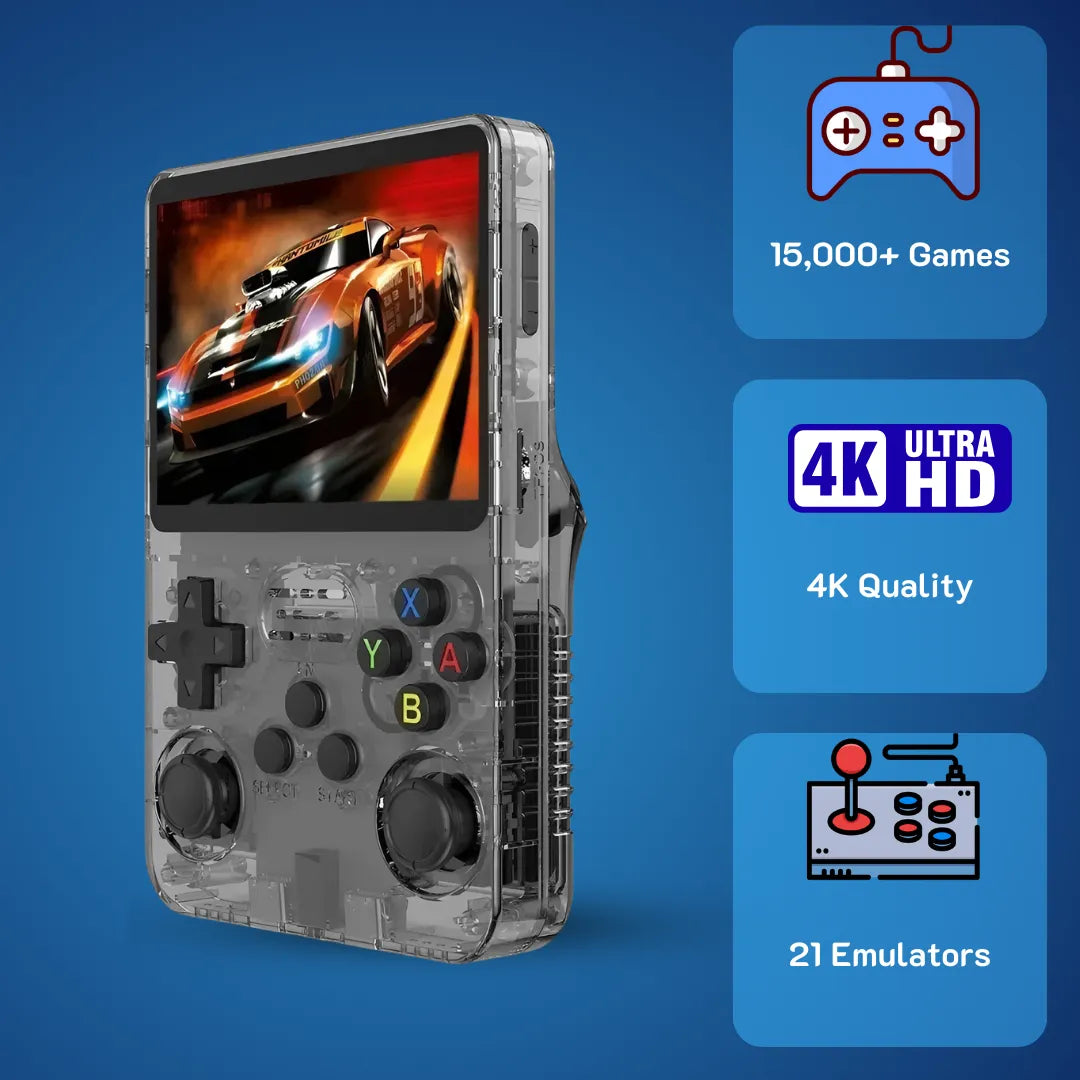
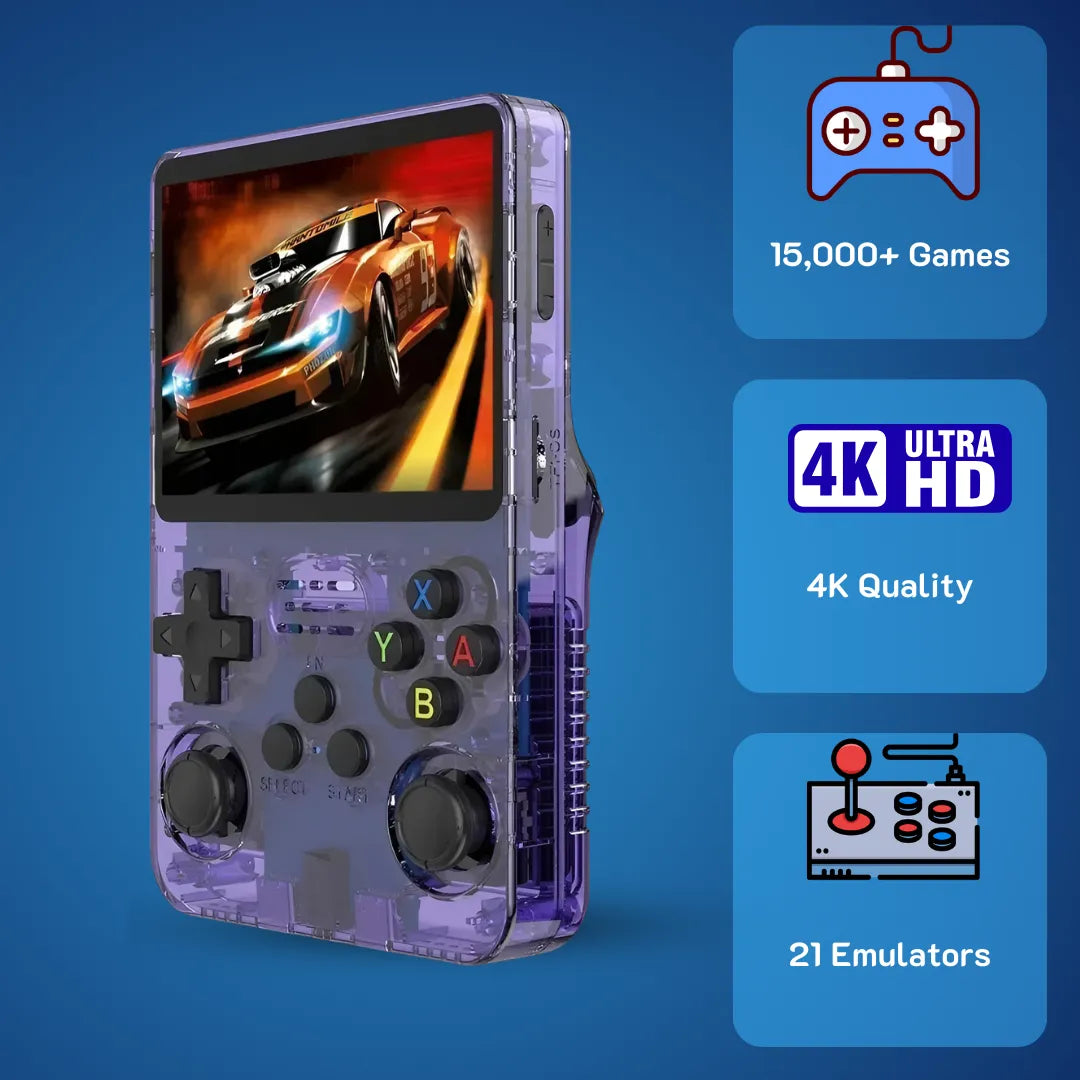
You have finally received your 2Bluebox R36S Retro Handheld Console, that beautiful translucent purple or black piece of nostalgia that promises to transport you back to the golden era of the 90s. You turn it on, and while the R36S comes with many titles, you instantly notice something is missing. Where is your favorite Mario hack? Why isn't that specific version of Pokemon in the list? Adding your own library is the first thing every Game Master R36S wants to do, but the ArkOS operating system can be a bit picky if you do not know the rules.

The R36S is built for quick pick-up sessions—once your game library is set up correctly, it just works.
At 2Bluebox, we understand that sinking feeling when you copy files over, boot up the device, and see an empty list. Today, I am going to walk you through exactly how to add games to R36S, ensuring your library looks clean and runs smoothly.
⚠️ Critical Warning: Before we dive in, here is a golden rule: throw away the unbranded SD card that came in the box. These "stock cards" (often valued at less than 2 USD in bulk) have a failure rate of nearly 100% within the first month of heavy use. For a stable experience, I always recommend spending approximately 12 to 15 USD on a high-quality Samsung Evo or SanDisk Ultra card, or checking out our pre-configured solutions at 2bluebox.com. Let us turn this retro game console into the ultimate time machine.
1. Understanding the SD Card Slots (TF1 vs. TF2)
When you look at the right side of your R36S Honest Review: Is It Still the Best Handheld Under $100?, you will notice two slots labeled TF1 and TF2. It is crucial to understand the difference between these two before you start dragging and dropping files.

TF1 = system (ArkOS). TF2 = game library. Keeping ROMs on TF2 is the cleanest way to add games and protect your OS card.
The TF1/INT Slot 💾
This is the system partition. It holds ArkOS, the Linux-based operating system that powers the R36S. If you are using a single card setup, this card holds both the OS and your games. However, when you plug this card into a Windows PC, you will often see multiple partitions (usually labeled BOOT, ROOT, and EASYROMS) and get annoying messages asking you to format the drive. Do not format it, or you will brick your device.
The TF2/EXT Slot 🎮
This is the dedicated game slot. We strongly recommend using this R36S Dual SD Card setup. By keeping your OS on TF1 and your ROMs on TF2, you protect your game saves. If ArkOS crashes or needs an update, you can flash a new image to TF1 without touching your precious 100-hour RPG save files on TF2.
According to the ArkOS Wiki contributors, separating the OS and ROMs partition reduces the risk of file system corruption during system updates significantly, as the OS partition often requires a complete re-flash (Source: Christian Haitian, GitHub ArkOS Wiki).
2. Method 1: Using a Single SD Card (The Default Way)
If you only have one high-quality micro SD card and want to know how to add games to R36S quickly, this is the method for you. This is how most users start their R36S Gaming journey.
- Power Down: Turn off your R36S Console completely by pressing Start, selecting Quit, and choosing Shutdown. Never just pull the card out while the device is on.
- Connect to PC: Remove the card from the TF1 slot and insert it into your computer using a card reader.
- Ignore Errors: Windows will likely pop up 3 to 4 error windows saying "You need to format the disk in drive X: before you can use it." 🚫 Cancel all of them. This happens because Windows cannot read the Linux partitions (BOOT and ROOT), but it can read the partition named EASYROMS (formatted as exFAT or FAT32).
- Locate Folders: Open the EASYROMS drive. You will see a list of folders corresponding to different consoles (e.g., gba, nes, snes).
- Copy Files: Copy your game files (ROMs) into the corresponding folders. For example, if you have a copy of Sonic the Hedgehog, it goes into the megadrive or genesis folder.
- Eject: Safely eject the card, put it into TF1, and turn on your R36S.
3. Method 2: Setting Up a Second SD Card (The Pro Way)
This is the preferred method for the R36S Retro Handheld. It keeps your library safe and makes adding games much easier because you do not have to deal with those annoying Linux partition errors on Windows.
Video: NEW BIG Starter Guide R36S Handheld | How to install ArkOS & SD2 for ROMs. Source: Alex Blogoodf
Step 1: Prepare the Card 🛠️
Take your new micro SD card (Slot 2) and plug it into your PC. You need to format this card to exFAT or FAT32. For cards larger than 32GB (which you will need for a retro gameboy experience with 15,000 games), exFAT is the modern standard.
Step 2: The Initial Handshake
Insert the blank, formatted card into the TF2 slot of your R36S. Turn on the device with the original OS card still in TF1.
Step 3: Configure ArkOS
Once the system boots up:
- Navigate to the Options menu in the main interface.
- Select Advanced.
- Scroll down and select Switch to SD2 for Roms.
Step 4: Let the Magic Happen ✨
The screen will flash text as the R36S CPU processes the command. ArkOS is currently copying the entire folder structure script from TF1 to your new TF2 card. This ensures you have the perfect R36S ROMs Folder layout without creating it manually.
Step 5: Load Your Games
Turn off the device. Take the TF2 card out and put it into your PC. Now, when you open it, you will see a clean folder structure waiting for your files. Simply drag and drop your collections into the correct folders.
4. ArkOS Folder Structure Cheat Sheet
One of the most frustrating aspects of the R36S Retro Handheld Game ecosystem is naming the folders. Does Nintendo go in "nes" or "nintendo"? Does PlayStation go in "ps1" or "psx"? If you get this wrong, the console will return a "0 Games Found" error.

Your EASYROMS root should look like this—folder names matter (for example, “psx” vs “ps1”) to avoid “0 Games Found”.
Here is the definitive ArkOS rom folder names list for the most popular systems on the R36S:
| System Name | ArkOS Folder Name | Recommended File Extension |
|---|---|---|
| Sony PlayStation 1 | psx (Not ps1) | .chd (Best), .pbp |
| Super Nintendo | snes | .sfc, .smc |
| Nintendo Entertainment System | nes | .nes |
| Nintendo DS | nds | .nds |
| Game Boy Advance | gba | .gba |
| Game Boy Color | gbc | .gbc |
| Sega Dreamcast | dreamcast | .chd, .cdi |
| Sony PSP | psp | .iso, .cso |
| Arcade / MAME | mame2003-plus | .zip (Non-merged) |
💡 Pro Tip: For CD-based systems like PS1 on the R36S Game Console, avoid using .bin and .cue files if possible. We recommend converting them to .CHD format. This compression method can reduce the total file size of CD-based games by nearly 50% without losing audio quality (Source: Russ, RetroGameCorps Compression Guide).
5. Don't Forget BIOS Files!
You have copied your games to the R36S, but when you try to launch Castlevania: Symphony of the Night, the screen goes black and kicks you back to the menu. Why? You are likely missing the BIOS files.
Think of the BIOS as the ignition key for the console 🔑. The emulator (the engine) is there, and the ROM (the fuel) is there, but without the key, the car will not start.
How to add BIOS to R36S:
- On your SD card (either EASYROMS in Method 1 or the TF2 card in Method 2), look for a folder specifically named bios.
- You need to place the system BIOS files directly into this folder (do not create subfolders unless specified).
- Common BIOS files you need include:
- scph1001.bin (for PlayStation 1)
- gba_bios.bin (for Game Boy Advance)
- dc_boot.bin (for Dreamcast)
It is critical that the BIOS file matches the exact MD5 checksum required by the emulator core. If the checksum does not match, the emulator may treat the file as missing or corrupted, causing the game to crash immediately (Source: Libretro Docs, PCSX ReARMed BIOS Guide).
Note: We cannot provide download links for these files due to copyright laws. However, searching for "RetroArch Bios Pack" usually leads users to the right resources. Alternatively, you can browse our retro game console with built-in games list solutions, where our configured cards at 2Bluebox come with everything optimized legally where applicable or pre-structured for your ease.
6. Final Step: Refreshing Your Game List
This is the step that causes the most panic. You have done everything right: formatted the card, copied the R36S ROMs, and added the BIOS. You turn on your RS36 Game Console, scroll to the system, and... nothing. It says "0 Games".
Do not worry. The R36S does not automatically scan for new files every time it boots up to save battery and startup time. You must tell it to look again.
How to Update 🔄:
- Press the Start button on the main menu.
- Go to UI Settings.
- Select Update Games Lists.
- Wait for the progress bar to finish.
Once this completes, your new games will appear in the menu, complete with box art if you have scraped them (which is a topic for another guide).
7. Troubleshooting (Common Issues)
Even the best Game Master R36S runs into trouble. Here are the most common issues and how to solve them.
Problem 1: I use a Mac, and my game list is full of duplicate files starting with "._"
- The Cause: macOS creates hidden index files (formatted as 4KB text files) that the R36S interprets as game files.
-
The Fix: On your Mac, open Terminal. Type
dot_clean /Volumes/YourSDCardNameand hit Enter before ejecting the card. This removes the ghost files.
Problem 2: My PS1 games are not showing up.
- The Cause: You probably put them in a folder named "ps1".
- The Fix: Rename the folder to psx. Also, ensure the file extension is not capitalized (e.g., use .chd, not .CHD), as Linux is case-sensitive.
Problem 3: The device freezes when saving.
- The Cause: You are likely using the stock SD card included with the R36S Handheld.
- The Fix: Replace the card immediately. The read/write speeds on generic cards are often below 10MB/s, which is too slow for instant state saves, causing the R36S CPU to hang. To prevent accidental freezes during gameplay, you might also want to check our Ultimate R36S Hotkey Guide: Master Your Handheld to ensure you aren't pressing conflicting commands.
Problem 4: I cannot find the "Switch to SD2" option.
- The Cause: Your ArkOS version might be outdated (older than the 2024 releases).
- The Fix: You need to update your ArkOS firmware. You can do this via WiFi (if you have a dongle) or by flashing a fresh image to the TF1 card. For a detailed walkthrough, read our Step-by-Step Guide to Updating ArkOS on Your R36S.
8. Conclusion
Adding games to your R36S Retro Handheld Game Console is a rite of passage. It transforms the device from a simple toy into a personalized museum of your childhood memories. By following the R36S Dual SD Card setup, adhering to the correct ArkOS rom folder names list, and ensuring you have the necessary BIOS files, you ensure a stable and enjoyable gaming experience.
Remember, the R36S is a powerful little machine capable of emulating thousands of titles, but it requires a bit of patience and the right setup. If you want to skip the technical headache and jump straight into gaming, you can always check out the pre-configured, high-performance SD cards we offer.
Ready to upgrade your experience? Check out our list of verified accessories and the full best retro handheld comparisons at 2bluebox.com. Let us handle the technical side so you can focus on beating that final boss 👾.
9. Frequently Asked Questions (FAQ)
Q1: What is the maximum SD card size for the R36S?
The R36S Handheld officially supports up to 256GB in the TF2 slot. However, many users in the community have successfully used 512GB cards formatted to exFAT without issues. For a Retro Handheld Game Console with 15,000 games, a 128GB card is usually the sweet spot, costing around 15 USD.
Q2: Can I play N64 games on R36S?
Yes, the R36S CPU (Rockchip RK3326) is capable of playing approximately 80% of the Nintendo 64 library effectively. Games like Super Mario 64 run at full speed (30-60 FPS depending on the region), while demanding titles like GoldenEye 007 may have frame drops below 20 FPS. Optimizing the emulator profile in the menu often helps.
Q3: Do I need to unzip ROMs before putting them on the R36S?
It depends on the system. For older consoles like NES, SNES, and Genesis, you can keep the games in .zip format to save space. For CD-based systems like PlayStation and Dreamcast, you must unzip them to get the .chd, .iso, or .bin/.cue files.
Q4: Why does my R36S screen look black after flashing a new ArkOS?
The R36S uses varying hardware components. There are currently at least 4 different screen panel versions (Panel 1 through Panel 4). If you flash a generic ArkOS image, the drivers might not match your screen, leading to a "Black Screen of Death". You need to replace the .dtb file in the BOOT partition with the one corresponding to your specific screen version. For a complete fix, consult our guide: R36S Black Screen of Death? Here Is How to Fix It.
Q5: Is the R36S better than the Miyoo Mini Plus?
For performance, yes. The R36S Handheld Game Console has a dedicated GPU (Mali-G31), allowing it to play N64, Dreamcast, and PSP games that the Miyoo Mini Plus cannot handle. It also features dual analog sticks, making it significantly better for 3D games.
🛒 Buy R36S Handheld - $79.99 USD (~$126 AUD)
10. Further Reading & Resources
To ensure the technical accuracy of this guide regarding the R36S and ArkOS architecture, we have sourced data directly from the official documentation and expert analyses. Below are the specific references used in this article:
1. On Correct Folder Structures (ArkOS)
-
The Fact: In the section "ArkOS Folder Structure Cheat Sheet", we stated that PlayStation 1 games must be placed in the
psxfolder and Super Nintendo insnes. This specific naming convention is mandated by the ArkOS operating system. - Source Article: "ArkOS Emulators and Ports Information"
- Website/Author: Christian Haitian (ArkOS Developer) via GitHub Wiki.
- Direct Link: https://github.com/christianhaitian/arkos/wiki/ArkOS-Emulators-and-Ports-information
2. On File Compression and Formats (.CHD)
-
The Fact: In "Method 1", we recommended converting
.bin/.cuefiles to.chdto save space and organize the menu. - Source Article: "The Ultimate ROM File Compression Guide"
- Website/Author: Russ from RetroGameCorps.
- Direct Link: https://retrogamecorps.com/2023/02/06/the-ultimate-rom-file-compression-guide/
3. On BIOS Requirements and Crash Fixes
-
The Fact: In "Don't Forget BIOS Files!", we explained that missing the correct BIOS (specifically
scph1001.binfor PS1) causes games to crash upon launch. - Source Article: "Sony PlayStation (PCSX ReARMed) Core Documentation"
- Website/Author: Libretro Docs (Official RetroArch Documentation).
- Direct Link: https://docs.libretro.com/library/pcsx_rearmed/#bios
Disclaimer: 2Bluebox promotes the preservation of retro gaming history. Users should ensure they own the physical copies of any ROMs they download and add to their R36S Game Console.


2Bluebox Retro Handheld Video Game Console
2Bluebox Retro Handheld Video Game ConsoleBUNDLE & SAVE

Collection 90s Gaming Magazine

2Bluebox 90s Pet Keychain

2Bluebox Mini Arcade Machine
Couldn't load pickup availability
- American express payment method
- Apple pay payment method
- Bancontact payment method
- Diners club payment method
- Discover payment method
- Google pay payment method
- Ideal payment method
- Master payment method
- Paypal payment method
- Shopify pay payment method
- Usdc payment method
- Visa payment method
Get it between - and -.
 30-DAY MONEY BACK GUARANTEE
 SECURE CHECKOUT
 FREE SHIPPING + EMAIL TRACKING