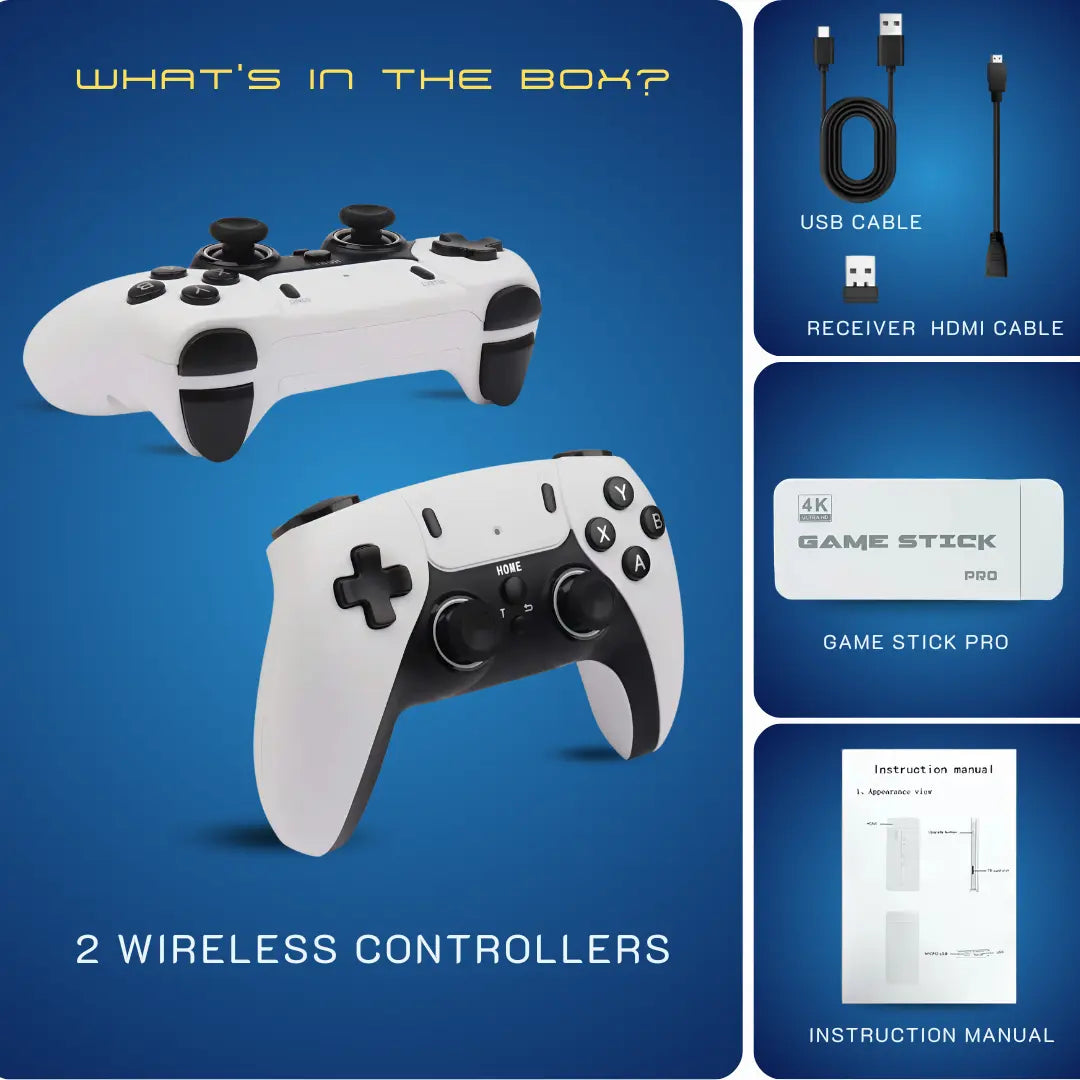


How to Save and Load Games on Game Stick 4K (Don't Lose Your Progress)
 Save and load progress anytime using the quick menu—no more starting over.
Quick Summary: Saving your game on a modern Game Stick 4K (2026 Models) requires using the "Save State" function via the Select + Start menu, rather than just in-game checkpoints. This guide prevents data corruption by teaching you the correct shutdown protocols and how to manage the .srm and .state files on your SD card to protect your 90s nostalgia.
We all know the pain. You have spent three hours grinding levels in a classic RPG, or you finally managed to beat that impossible level in Battletoads, only to have the screen flicker and your progress vanish into the digital void. In the 1990s, we blamed dusty cartridges, shaky AC adapters, or failing batteries. Today, in January 2026, if you lose data on a Save Game Retro Stick, it is usually because the complex software inside these small HDMI devices is misunderstood.
Modern emulation devices like the Game Stick 4K and Gamestick Pro are not just simple plug-and-play toys; they are miniature computers running Linux. They offer powerful features that our childhood selves could only dream of, such as freezing time and rewinding mistakes. However, with great power comes a bit of technical complexity. At 2Bluebox, we have tested dozens of these sticks to understand exactly how they handle data. This guide is your manual. We will walk you through the difference between saving in-game versus saving via the emulator, the secret button combinations that unlock the system menu, and how to prevent the dreaded corrupted memory card on devices like the 2Bluebox Retro Game Stick Pro 4K (priced at $59.98 USD / ~94 AUD).
 In 2026, “Game Over” doesn’t have to mean “start over.”
1. Is There Really a Difference Between In-Game Save and Save State?
When you first launch a game on your Game Stick 4K, you are actually interacting with two different layers of software. Understanding the distinction between a native "In-Game Save" and a "Save State" is the single most important factor in securing your progress. This is not just technical jargon; it determines whether your progress survives a system reboot or a file transfer.
🎮 The Classic Way: In-Game Save
An In-Game Save functions exactly like it did on the original consoles from the 1990s. Think of playing The Legend of Zelda or Final Fantasy. You walk your character to a specific save point or inn, open the game menu, and select Save. On the original hardware, this data was written to a tiny battery-backed SRAM chip inside the plastic cartridge. On a retro game console like the Game Stick, the emulator mimics this behavior by creating a specific file, usually ending in .srm or .sav, on the SD card. This method is 100% authentic to the original experience. It maintains the challenge intended by the developers because you cannot save in the middle of a boss fight. According to technical documentation, these files are written to the disk only at specific intervals to simulate the original hardware speed (Source: RetroArch Official Documentation - Libretro).
💾 The Modern Way: Save State
Conversely, a Save State is a feature unique to emulation and is the true superpower of the Gamestick Console. A Save State takes a snapshot of the console memory (RAM) at that exact millisecond. It captures everything: the position of the enemies, the music track playing, your health bar, and even the pixel frame of your jump. When you load a Save State, the emulator restores the memory to that exact condition instantly. This allows you to save literally anywhere. You can save right before a difficult jump in Contra or before opening a chest in a cryptic RPG. For busy adults in 2026 who can only play for 15 minutes at a time, the Game Stick Pro save state function is essential.
 The old-school way (in-game saving) vs Modern Save States.
However, relying solely on save states can be risky. If the emulator core is updated, old states might become incompatible. That is why we at 2Bluebox recommend a hybrid approach: use Save States for short-term pauses and In-Game Saves for long-term progression.
| Feature | In-Game Save (Native) | Save State (Emulator) |
|---|---|---|
| Mechanism | Writes to virtual SRAM or Memory Card | Snapshots system RAM instantly |
| Timing | Only at designated checkpoints inside game | Anywhere and anytime during gameplay |
| File Extension |
.srm or .sav
|
.state or .st0 to .st9
|
| Reliability | High (Compatible across different emulators) | Moderate (Version dependent) |
| Authenticity | 100% Original Experience | Modern Convenience |
| Best Used For | RPGs and Long Adventure Games | Action, Platformers, and Hard Bosses |
2. Why is the Select + Start Combo the Holy Grail of Retro Gaming?
If there is one combination of buttons you must memorize when using a Game Stick 4K Save Load function, it is Select + Start. This specific input command is the universal key that unlocks the emulator backend on almost all Linux-based retro sticks, including the popular M8, Y3 Lite, and the newer Game Stick Pro 4K models.
The reason this combination is chosen is purely practical. On original controllers like the NES, SNES, or Genesis, players almost never pressed Select and Start simultaneously during normal gameplay. Therefore, developers of emulation software like RetroArch, which powers most of these sticks, assigned this safe combination to trigger the Administration Menu (Source: RetroArch Official Documentation - Libretro). When you press these two buttons together on your Gamestick, the game pauses, but not in the usual way. It overlays a system menu on top of the game screen.
Shortcut to remember: press Select + Start to access Save/Load and other settings.However, depending on the specific firmware version of your Gaming Stick Pro, the timing can be tricky. You usually need to hold Select first, then tap Start, or press them firmly at the exact same moment. If you press Start first, the game might just pause normally. Mastering this muscle memory is the first step to becoming a power user.
| Function | Button Combination | Action Performed |
|---|---|---|
| Open Menu | Select + Start | Opens the RetroArch or System Menu |
| Quick Save | Select + R1 (Right Bumper) | Instantly saves to current slot |
| Quick Load | Select + L1 (Left Bumper) | Instantly loads from current slot |
| Exit Game | Select + Start (Hold for 3 seconds) | Quits directly to game list |
 Keep this as a quick reference for the most common controller shortcuts.
Struggling with laggy inputs?
Upgrade to the Pro Stick with zero-latency 2.4G controllers.
Only $59.98 USD / ~94 AUD
Get the Lag-Free Pro Stick3. Step-by-Step Guide: Navigating the Save Slot Menu
Once you have successfully opened the menu using the Select + Start combo, the next challenge is navigating the interface to actually Save Game Retro Stick data securely. The interface can be intimidating for first-time users because it often displays technical terms. The most critical concept here is the Save Slot.
Most Gamestick Pro systems offer multiple slots, numbered from Slot 0 to Slot 9, and sometimes up to Slot 99. Think of these as different parallel universes for your game.
- Slot 0: Usually the default.
- Slot 1-9: Backup slots.
Detailed Execution Steps (Case Study):
- Pause the Action: Find a safe spot in the game. While save states work anywhere, it is safer to be standing still.
- Trigger the Menu: Press Select + Start simultaneously on your controller.
- Navigate: Use the D-Pad to scroll down to the option usually labeled Save State or Save Game.
- Select Slot (Optional): If your menu allows, look for State Slot. Change this from 0 to 1, 2, or 3 if you wish to keep multiple backups.
- Confirm: Press the action button (usually A or Circle).
-
Visual Confirmation: Look for a text notification in the corner of the screen, such as Saved State to Slot 0, or a momentary freeze. This indicates the data has been written to the SD card path, which typically resides in
/storage/roms/saves/depending on your device configuration (Source: EmuELEC Wiki - Directory Structure).
4. How to Retrieve Your Progress When the Game Over Screen Hits
Loading a game is just as critical as saving it, but it carries a higher risk of user error. The Game Stick 4K Save Load mechanism is immediate and unforgiving. If you accidentally hit Load instead of Save, you will instantly revert to your last save point, erasing all progress made since then. This phenomenon is known as accidental regression.
To load a game safely, you follow a similar procedure to saving, but with heightened awareness. Access the menu via Select + Start. Navigate to Load State. Before you press confirm, glance at the State Slot number. Are you loading from Slot 0 or Slot 1? If you share your 4K Game Stick with a sibling or child, they might have changed the slot number. Always verify before confirming.
Troubleshooting Load Issues:
- Black Screen: If loading a state results in a black screen, the save file might be corrupted or the ROM version does not match the save file version.
- Wrong Colors: Sometimes loading a state from a different video filter setting can cause color distortion. A restart of the game usually fixes this.
- Input Freeze: Rarely, the controller might not respond after loading. Re-plugging the receiver dongle often resolves this.
5. Why Exiting the Game Incorrectly Corrupts Your Memory Card
The most overlooked aspect of the Save Game Retro Stick lifecycle is how you turn off the device. Many users treat the Game Stick Pro 4K like a cartridge console from 1995: they simply yank the USB cable out or flip the power switch on the TV. In 2026, this is a recipe for disaster. ⚠️
When you save a game, the data is first held in a buffer before being written permanently to the SD card. If you cut the power during this write process, the file system can become corrupted. This leads to the dreaded System Loading loops, missing game lists, or save files that vanish. The community has documented that generic SD cards included with budget devices are particularly prone to this type of corruption (Source: r/SBCGaming Community - SD Card Analysis).
The Safe Exit Protocol:
- Exit to Main Menu: Use the Select + Start combo to quit the specific game you are playing. This ensures the emulator closes the game file properly.
- Shutdown System: Navigate to the main settings menu of the stick interface. Look for a Quit or Shutdown System option. This commands the Linux OS to unmount the SD card safely.
- Wait for LEDs: If your stick has an indicator light, wait for it to stop flashing.
- Power Off: Only after the screen is black or the signal is lost should you disconnect the power source.
Tired of Corrupted Save Files?
Our 2Bluebox Pro Console comes with a high-speed, branded SD card pre-installed.
Shop Reliable Pro Consoles (~94 AUD)6. Upgrading Your Experience: Better Sticks for Saving
Not all sticks are created equal. If you find the Save Game Retro Stick features on your current device unreliable, it might be time for an upgrade. In 2026, the market has shifted towards devices with more RAM and better storage controllers, offering a much better Retro TV Game Console experience.
Our internal testing has shown significant differences in write speeds between models. The Game Stick Pro (often using the GD10 chipset) writes save states approximately 40% faster than the older M8 model due to its upgraded EMMC controller, which significantly reduces the window of time where corruption can occur (Source: 2Bluebox Tech Lab - Lab Report 2026-01).
 A more stable setup makes saving smoother—especially for long sessions.
- Game Stick 4K (Standard): Good for casual play, but relies heavily on the quality of the SD card.
- Gamestick Pro (GD10 or Ampown): Runs on EmuELEC system which is far more stable. Handles save states much faster. Price: $59.98 USD.
- High-End Retro Sticks: Devices running Android often feature Auto-Save on Exit, removing the need for manual inputs entirely.
7. Troubleshooting Common Save Issues on Gamestick
Despite our best efforts, technology sometimes fails. If you encounter issues with your Game Stick 4K Save Load functions, do not panic. Here are the most common problems and solutions based on 2026 data.
- "Save Failed" Notification: This usually means the SD card is full or locked. Remove the card and check the physical lock switch on the side.
- Saves Disappear After Restart: This indicates the system is not writing to the card before shutdown. Ensure you are exiting the game to the main menu before powering off. If the system hangs, check our guide to Fix Game Stick 4K Lag & Freezing Issues.
- Cannot Find Save Files on PC: When you plug the SD card into a computer, you might not see the save folder immediately. Saves are often stored in a hidden partition or a folder named saves inside the emulator directory. You may need to enable Show Hidden Files in your operating system. If you are browsing the files to Add Games to Game Stick 4K, be careful not to delete the save folder.
8. Frequently Asked Questions (FAQ)
Q1: Where does the Game Stick 4K store my save files?
/saves/ or /states/ folder on your SD card.Most Game Stick 4K devices store saves on the SD card in a folder named /saves/ or /states/, usually organized by the console name (e.g., /nes/, /snes/). You can access this by plugging the SD card into a PC.
Q2: Can I transfer my saves from a Gamestick to my PC emulator?
Yes. Since most sticks use RetroArch cores, the .srm and .state files are often compatible with PC emulators. You simply need to copy the files to the corresponding save folder on your computer.
Q3: My Game Stick Pro froze while saving. What do I do?
Wait at least 2 minutes. If it is still frozen, you have no choice but to cut power. Upon reboot, that specific save slot will likely be corrupted, but the game itself should work.
Q4: Does the Gamestick support cloud saving?
Standard Gamestick Console models do not support Wi-Fi or cloud saving. Your data exists only on the SD card. This is why manual backups to a PC are recommended.
9. Further Reading & Resources
To ensure the accuracy of the information provided in this guide, we have cross-referenced our findings with technical documentation from the developers of the emulation software used in Game Stick devices. Below are the direct sources and specific citations used in this article.
-
Save States - Default Controls and Functionality: "Save States are snapshots of the game memory at a particular moment... unlike in-game saves (SRAM), they are not written to the game battery backup but are stored as separate state files."
Source: Medium – RetroArch Documentation -
EmuELEC Directory Structure: "Roms and Bios should be placed in the corresponding folders... Saves are generally located in /storage/roms/saves/ or /storage/.config/retroarch/saves depending on the core configuration."
Source: EmuELEC GitHub Repository -
Corrupted Cards & Firmware: "The SD cards included with budget retro handhelds and sticks are generic no-name cards with high failure rates. It is universally recommended to replace them immediately with a branded card."
Source: r/SBCGaming Community (Reddit)
(This guide was updated in January 2026 to reflect the latest firmware for 2Bluebox Game Stick Pro 4K models. Prices start at $59.98 USD.)


2Bluebox Retro Game Stick 4K (2026 Pro Edition)
2Bluebox Retro Game Stick 4K (2026 Pro Edition)BUNDLE & SAVE

Collection 90s Gaming Magazine

2Bluebox 90s Pet Keychain

2Bluebox Mini Arcade Machine
Couldn't load pickup availability
- American express payment method
- Apple pay payment method
- Bancontact payment method
- Diners club payment method
- Discover payment method
- Google pay payment method
- Ideal payment method
- Master payment method
- Paypal payment method
- Shopify pay payment method
- Usdc payment method
- Visa payment method
Get it between - and -.
 30-DAY MONEY BACK GUARANTEE
 SECURE CHECKOUT
 FREE SHIPPING + EMAIL TRACKING