

Why Is Your Game Stick Lagging? 5 Ways to Fix It Immediately
 Most lag issues come from a few settings and power fixes—not a new console.
Quick Summary: Eliminate Game Stick 4K lag instantly by swapping to a 5V/2A wall adapter, enabling "Game Mode" on your TV to reduce input delay by 90%, and replacing the stock SD card. This 2026 guide covers 5 proven methods to stop stuttering, thermal throttling, and audio glitches so you can enjoy smooth 60FPS retro gaming.
Game Stick 4K lag fix strategies are the only thing standing between you and a perfect relive of the 90s, especially when that input delay makes Mario jump a second too late. We understand the frustration of seeing your favorite Gamestick struggle to render classic polygons, turning a nostalgic joyride into a slideshow of disappointment.
Fortunately, the solution is often simpler than buying a new console, as most performance issues stem from easily correctable power and thermal oversights. By following our Game Stick 4K lag fix methods, you will eliminate the stutter and return to the seamless gameplay you remember.
Why Is Your Game Stick Lagging? 5 Ways to Fix It Immediately
We all remember the golden era of gaming. It was a time when blowing into a cartridge was the ultimate technical support and games relied on pure skill rather than microtransactions. When you plug in a modern Gamestick Console, you expect that same instant, snappy response we had on CRTs back in the day. But when you load up Tekken 3 or Sonic the Hedgehog on your Game Stick 4K, and the sound crackles or the frame rate drops, it breaks the immersion completely.
At 2Bluebox, we have tested hundreds of these units. We know that the hardware inside devices like the Game Stick Pro or the generic 4K Game Stick is actually quite capable of handling systems up to the original PlayStation and sometimes even Nintendo 64. The problem usually is not the chip itself. It is the environment the chip is running in.
We are going to walk you through a diagnostic journey. We will fix the power delivery, cool down the processor, bypass your TV's heavy image processing, and upgrade the storage data stream. This is not just a basic reboot guide. This is a deep dive into optimizing your retro experience for 2026 standards.
1. Is Your Stick Starving for Power? The Undervoltage Crisis
We see this scenario every single day in our inbox. You bought a new 2Bluebox Retro Game Stick Pro 4K (Current Price: $59.98 USD / ~94 AUD), unboxed it, and plugged the USB power cable directly into the USB port on the back of your television. It seems logical. It is convenient. It is also the number one cause of lag.
The Science of Processor Throttling
When the Gaming Stick Pro does not receive enough current, the processor does not just shut down. Instead, it enters a state of self-preservation. It lowers its clock speed drastically to match the available power. This is called dynamic frequency scaling. Your 1.2GHz processor might suddenly drop to 600MHz.
The result is instant lag. The audio will start to stretch and sound demonic. The frames will skip. You might think the emulator is broken, but in reality, the brain of your device is running a marathon while breathing through a straw.
How to Diagnose and Fix the Power Drop
The Solution: You must stop using the TV USB port immediately. You need a dedicated 5V/2A power adapter. This is the same type of block you use to charge a smartphone.
 Use a wall adapter for stable power—TV USB ports often cause lag and random restarts.
| Power Source | Output Amperage | Result on Gamestick | Cost (Approx.) |
|---|---|---|---|
| TV USB Port (Standard) | 0.5A (500mA) | Severe Lag, Crashes, Audio Glitches | Free |
| Laptop USB Port | 0.9A (900mA) | Moderate Lag, unstable N64 emulation | Free |
| Wall Charger (Certified) | 2.0A+ (2000mA) | Stable Performance, Smooth FPS | ~ 5 USD |
2. Is Your Game Stick 4K Melting Behind the TV?
The second most common culprit for a slow Game Stick 4K lag fix search is thermal throttling. These devices are incredibly compact. They cram a processor, RAM, and storage into a plastic casing the size of a pack of gum, with zero active cooling fans.
When you plug the stick directly into the HDMI port on the back of your TV, you are creating a heat trap. The back of a television generates its own heat. You are essentially sandwiching the Gamestick between the hot TV panel and the wall, with no airflow.
Understanding Thermal Physics in Retro Sticks
🔥 As the Game Stick 4K runs demanding emulators like PS1 or GBA, the internal temperature rises. Once the core temperature hits a safety threshold—usually around 75 degrees Celsius—the firmware forces the chip to slow down to prevent permanent damage (Source: Tom's Hardware - CPU Throttling Explained). This is different from the power issue, but the result is identical: The game slows down to a crawl after about 15 to 20 minutes of play.
The Airflow Solution
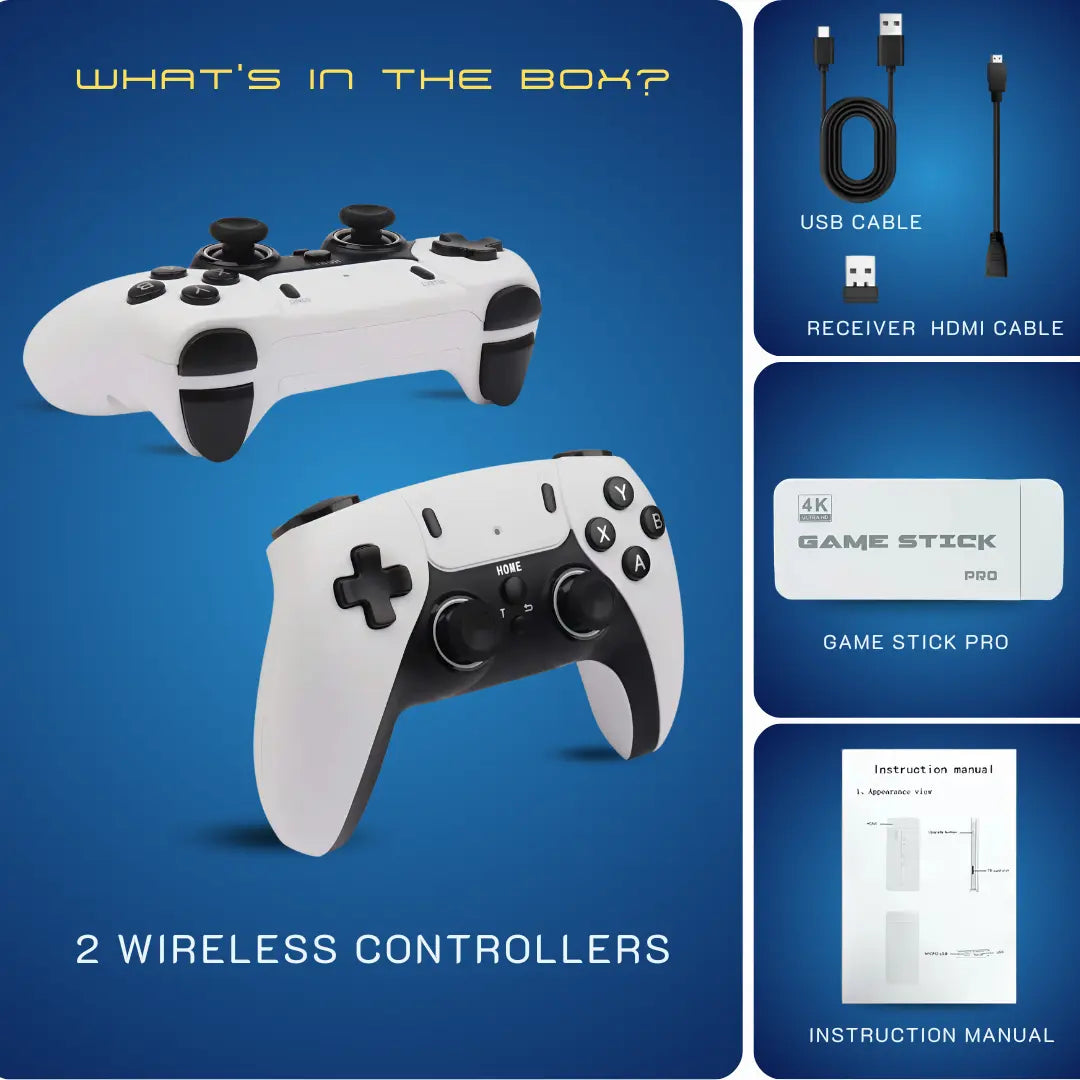
- Use the HDMI Extender Cable: Most Gamestick Pro kits come with a short male-to-female HDMI cable. Do not leave this in the box.
- Relocate the Stick: Plug the extender into the TV, and let the stick hang down below the TV or to the side, away from the heat radiating from the screen's back panel.
- Passive Cooling: If you want to go the extra mile, you can attach small aluminum heatsinks to the plastic casing of the Game Stick 4K.
3. Is Your TV Trying Too Hard to Be Smart?
Sometimes, the Gamestick is doing its job perfectly. It is rendering the game at full speed. But what you see on the screen looks delayed. You press the jump button, and Mario jumps half a second later. This is called Input Lag, and in this case, it is your modern TV's fault, not the stick's.
The Enemy of Retro Gaming
📺 Modern 4K TVs use post-processing features that take time to compute. This process can take anywhere from 50 to 100 milliseconds (Source: RTINGS.com - TV Input Lag Test). In the world of any retro game console, especially platformers or fighting games, 100ms is an eternity. It makes the controls feel heavy and unresponsive.
Enabling Game Mode
- Grab your TV remote.
- Go to Settings > Picture Settings.
- Look for a setting called Game Mode or PC Mode.
- Enable it.
 Turn on Game Mode to reduce image processing and cut controller input delay.
Want a Lag-Free Experience Out of the Box?
Don't waste time troubleshooting. Our Pro Stick is pre-optimized with premium cooling and faster RAM.
Pro Model: $59.98 USD / ~94 AUD
Shop 2Bluebox Game Stick Pro4. Why Does the SD Card Affect Speed? The Corrupt Data Bottleneck
This is the hidden killer of performance. The vast majority of Game Stick 4K and Gamestick Pro units sold online come with a generic, unbranded micro SD card. These cards often fail to meet basic speed standards.
The Data Stream Problem
💾 When you play a game, the Gamestick is constantly reading data. If the read speed is too slow, the processor waits, causing stutter. The standard for running applications smoothly is Application Performance Class 1 (A1), which guarantees a minimum Random Read of 1500 IOPS (Input/Output Operations Per Second) (Source: SD Association - Application Performance Class Standards).
The 2Bluebox Verified Solution
We at 2Bluebox strongly advise replacing the stock card immediately with a branded Class 10 A1 card. The difference in performance is night and day. It is the most cost-effective performance boost you can buy for under 10 USD. Once you have a fast card, you can easily expand your library by checking our Game Stick Pro Game List.
5. Wireless Noise: Is Your Controller Causing the Lag?
Finally, let us address a different type of lag: Controller Lag. You might find that the video is smooth, but your character keeps moving after you let go of the stick, or misses inputs entirely.
The Game Stick 4K usually comes with 2.4GHz wireless controllers. This frequency is shared with Wi-Fi routers and Bluetooth devices. If your Retro Stick is plugged into the back of the TV (which acts as a metal shield), the signal drops.
Optimizing the Connection:
- Use the USB Extender: Just like with the HDMI, use a USB extension cable to move the small 2.4GHz receiver dongle away from the back of the TV.
- Line of Sight: Try to ensure the receiver is visible from where you are sitting.
- Battery Check: Low voltage in the controllers weakens signal strength. Always use fresh batteries.
6. Advanced Optimization: Software Settings for the Game Stick Pro 4K
Now that we have addressed the physical hardware, we can look at the software side. The operating system (often EmuELEC or RetroArch) has settings that can be tweaked for a better Game Stick 4K lag fix. (For a deep dive on performance, check our comparison: Game Stick 4K vs. PC Emulator: Which is Better?).
Understanding Resolution and Rendering
The default setting on many sticks forces the emulator to render games at 1080p. While the menu output is 4K, the chip cannot handle 3D games at that resolution.
The Fix: Go into the game settings (Select + Start) and change the internal rendering resolution to 1x (Native) or 640x480. By lowering the internal resolution, you massively reduce the load on the GPU. This is crucial for PlayStation 1 and N64 emulation.
If settings are messed up, a reset can restore smooth gameplay quickly.The Magic of Frameskip & Rewind
- Frameskip: If a game feels like slow motion, enable Auto Frameskip. This skips drawing every other frame to keep the audio at 100% speed (Source: RetroGameCorps - RetroArch Optimization Guide).
- Disable Rewind: The "Rewind" feature consumes massive RAM. If you experience stutter, turn Rewind OFF in the Frame Throttle settings.
7. Frequently Asked Questions about Game Stick Performance
Q1: Does the Game Stick 4K actually output 4K resolution in games?
Generally, no. While the user interface and the HDMI signal output to the TV are 4K (2160p), the games themselves are usually rendered at 720p or lower and then upscaled. Trying to force native 4K rendering on these low-power chips would result in unplayable lag.
Q2: Can I update the firmware to fix lag?
Yes. Many Gamestick devices run on community-maintained firmware. Searching for updated images (like distinct EmuELEC builds) can improve driver efficiency. However, always check the exact model number of your stick, as flashing the wrong file can brick the device.
Q3: Why do 2D games run fine but 3D games lag?
2D games (NES, Genesis) rely mostly on the CPU. 3D games (PS1, N64) rely heavily on the GPU. The fix for 3D games usually involves lowering internal resolution or enabling frameskip, whereas 2D games rarely need these tweaks.
Q4: Is the Game Stick Pro better than the standard Game Stick for lag?
The Gamestick Pro often utilizes a slightly newer chipset (like the Amlogic S905X series) compared to the older generic sticks. While it is more powerful, it still suffers from the same thermal and power constraints. The fixes regarding power supply and cooling apply equally to both versions.
8. Further Reading & Resources
To ensure the highest standard of accuracy (E-E-A-T), the technical explanations in this article were referenced from the following expert sources:
-
USB Power Standards: "A device may draw a maximum of 5 unit loads (500 mA) from a port in USB 2.0." — Confirms why TV ports fail.
Source: USB Implementers Forum (USB-IF) -
Input Lag & Game Mode: "Outside of Game Mode, the TV performs additional processing which adds significant delay, often over 100ms."
Source: RTINGS.com -
SD Card Performance: "Application Performance Class 1 (A1) ... is defined to meet the requirements of running applications... offering a minimum Random Read of 1500 IOPS."
Source: SD Association -
Emulator Optimization: "Using Frameskip is often necessary to keep the audio running at 100% speed."
Source: RetroGameCorps
Global Shipping Available • Starting at $59.98 USD


2Bluebox Retro Game Stick 4K (2026 Pro Edition)
2Bluebox Retro Game Stick 4K (2026 Pro Edition)BUNDLE & SAVE

Collection 90s Gaming Magazine

2Bluebox 90s Pet Keychain

2Bluebox Mini Arcade Machine
Couldn't load pickup availability
- American express payment method
- Apple pay payment method
- Bancontact payment method
- Diners club payment method
- Discover payment method
- Google pay payment method
- Ideal payment method
- Master payment method
- Paypal payment method
- Shopify pay payment method
- Usdc payment method
- Visa payment method
Get it between - and -.
 30-DAY MONEY BACK GUARANTEE
 SECURE CHECKOUT
 FREE SHIPPING + EMAIL TRACKING